





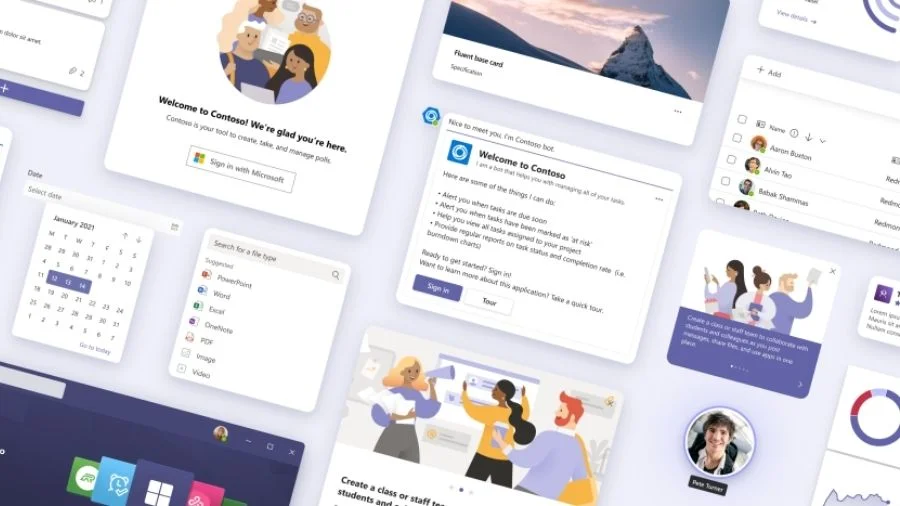

Teams is Microsoft 365 's flagship collaboration platform with 250 million daily active users by the end of 2021. This application is full of features and it is easy to get lost among them all. Some of the best known features are chat, video conferencing and document sharing. But that's not all. So how can you make the most of Microsoft Teams to collaborate in your teams?
Here is a list of tips that will take your team to the next level.
1. Organize your Teams well from the start
1.a Linking Teams and SharePoint
SharePoint is a collaborative platform developed by Microsoft. It allows, among other things, to store, organize, share and consult information in a secure manner. One mistake you should not make is to use Teams and SharePoint completely independently. This is because SharePoint enables you to keep documents in sync and always up-to-date in the cloud. When you create a Teams team, it will automatically create a SharePoint site. In the other direction, you can also synchronize a SharePoint site on Teams. This way, all your SharePoint documents are accessible for your team to work together in the Teams app.
💡 Tip! Add an image to your Teams team to make it more easily recognizable.

SharePoint documents are accessible for your team to work together in the Teams app
1.b Creating channels
Once your team is created and linked to your SharePoint, you will need to add discussion channels. These channels refer to work themes, depending on the team created. One channel is listed by default: "General". This channel cannot be deleted and different uses can be made of it.
💡 At Jint, we use this channel as the main place for general conversations and announcements, which cannot be related to any other specific channel.
In addition, in the channels you can make announcements. This allows a special formatting with more options and a background.

💡️ Jint's tip: Add emojis to each channel. This makes them more memorable and quickly distinguishable at a glance. Preferably use emojis related to the channel title and you're done. To display the list of emojis, there is a shortcut: [Windows] + [.], a real time-saver!

🔔 New features have arrived with the release of Windows 11! To find out about them, here is our article.
2. Organise the application tabs.
Teams provides access to a wide range of applications. For each channel, add applications that are useful to your team's collaboration so you can easily find them.

To do this, select the [+] button in the application bar and then choose which one you want to pin.
You will then be able to access some settings that allow you to rename the tab, enlarge it to full screen, open it in a separate window or from the web.


💡️ Jint's tip: Focus on the apps built into Teams to simplify task tracking and collaboration. Indeed, by going through Microsoft apps, you will be able to access everything you need from one place: Teams. This will allow you to better manage your tasks with Tasks and Planner.
Once this is done, we can say that your Teams team is ready! But there's even more to help you get the most out of this application. Here are the next few tips on how to be more effective on Teams.
3. Teams chat tips
3.1 Adding tabs to the chat
Just as in a Teams channel, you can pin applications to a conversation. However, it is not possible to pin certain applications such as Planner, To do, Task or List.
3.2 Pinning conversations
When conversations pile up, pinning your favorite conversations can save you time. To do this, click on [...] next to the conversation, then pin.

3.3 Filtering conversations
To help you find your conversations, Teams offers the ability to filter conversations by name, meeting, unread messages, or muted messages. To do this, you can use the filter button or the shortcut [Ctrl] + [shift] + [F].

3.4 Formatting your message
Have you ever sent a Teams message when you wanted to start a new line? This will no longer happen with the shortcut [Ctrl] + [shift] + [X] or by selecting the [format] button.
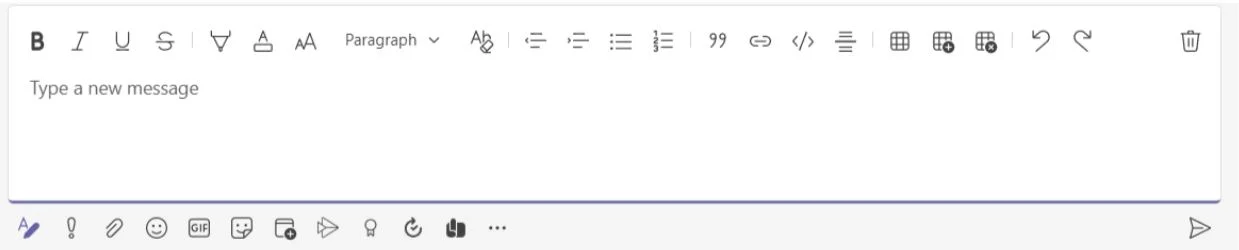
This provides a range of layout options: changing the font color, markup, paragraph anchoring, bullet points, inserting quotes, links, tables and Snipet code.
3.5 Saving messages
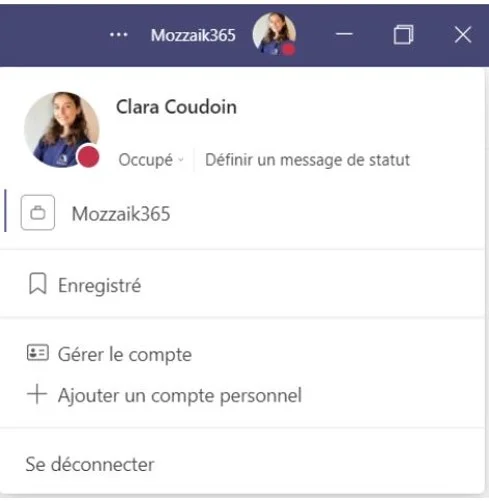
Sometimes we receive an important message that we want to come back to later. The option to save messages allows you to find them in one click. To do this, click on your profile picture, then select the "saved" tab. The list of saved messages appears in the left-hand column with the conversation containing the message on the right.

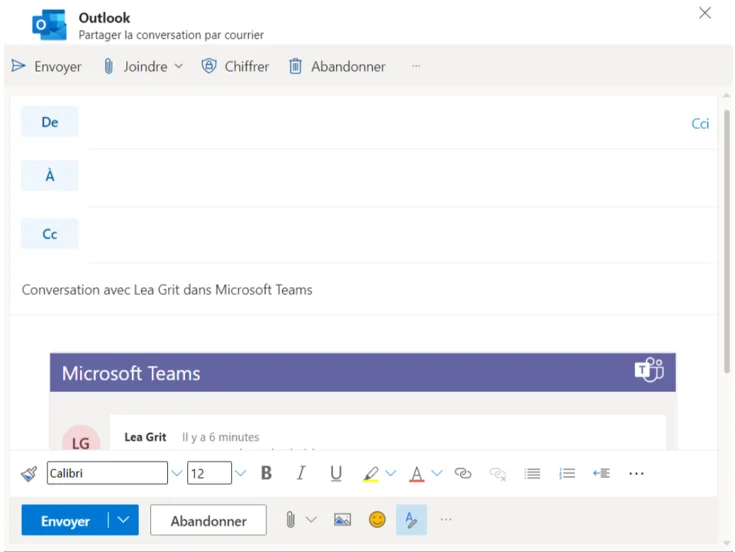
3.6 Sharing a Teams message on Outlook
The advantage of using Microsoft's suite of tools is that they are all connected to each other. So you can share a Teams message in an email easily using the message options.

3.7 Using the immersive reader
The immersive reader displays the selected message without the layout and full page to remove any distractions. The message can also be read aloud. Among the voice settings, you can choose a female or male voice, as well as the reading speed. You can also change the font size, background color, etc. Finally, this option translates a message and has it read aloud in the chosen language. A good tool to know.

To learn more about the new Teams features announced by Microsoft, read our article on the subject
4. Tips in Teams Meeting
4.1 Managing the screen display
When you are in a Teams meeting, you can choose to share your screen. Basic. But there's a little-known option: you can import a PowerPoint presentation rather than share it. This way, in presenter mode, you'll be able to see your presentation notes and play the slides from Teams. If you want to focus only on your slides, you can disable presenter mode in the options to stop seeing the notes. Also, to make sure that participants have the same view as you, you can click on the "synchronize with presenter" tab. Finally, you also have the option to translate your slides into the 19 languages offered by Teams.
For the display of participants, you can use the "focus" mode to hide their camera and display only the presentation. If, on the other hand, you want to highlight specific participants, you can select the "spotlight" option after right-clicking on their camera.
Want to enlarge the screen? Select full screen mode to remove the top and bottom bars.
4.2 Muting a meeting
Every time a meeting you are invited to starts, it sends you a notification. If you know that you will not attend, or that this recurring meeting is not relevant to you, you can mute it. This way you will not be disturbed when the meeting starts.
Finally, a bonus Microsoft Teams tip: there are a lot of shortcuts in Teams, and to find out about them, you can use a... SHORTCUT! Ironic, isn't it? So here's the holy grail to hold if you're a Teams user: [Ctrl] + [.] This command will give you access to all the shortcuts in the application.
Things to remember
📌1. Using SharePoint;
📌2. Add an image to your Teams;
📌3. Create a channel by theme.
📌4. Add emojis to your channel titles
📌5. Use [Windows] + [.] to display the list of emojis (valid everywhere).
📌6. Organize the application tabs of your channels
📌7. Pin useful applications to your sidebar
📌8. Use the 'Announcement' option to highlight a discussion in a channel
📌9. Adding tabs to a chat
📌10. Filtering conversations
📌11. Use the shortcut [Ctrl] + [Shift] + [X] for more layout options in a message
📌12. Save important messages
📌13. Share your messages on Outlook
📌14. Translate your messages and listen to them with the immersive player
📌15. Importing a PowerPoint presentation into a meeting
📌16. Manage the display of your presentations
📌17. Muting meetings
📌18. Knowing all the shortcuts that exist thanks to [Ctrl] + [.]
.jpg)


.webp)

.jpeg)


