






🧠 TL;DR: Creating a SharePoint intranet easily
- If you're already on Microsoft 365, you have the foundation: creating a SharePoint intranet is about assembling the right blocks, not starting from scratch.
- The step-by-step method: communication site → simple architecture → web parts → permissions → hub → Viva Connections, then train and launch.
- Timeline: a few days for a basic version, 4 to 12 weeks for a polished, governed intranet.
- No code needed: a simple intranet is built with native tools; advanced design calls for an extension.
- The simplest path: SharePoint + a native extension like Jint SharePoint, a modern, engaging intranet with no development and no technical debt.
Creating a SharePoint intranet does not have to be a long, complex project. If your organization is already on Microsoft 365, you have everything you need: it's just a matter of assembling the right building blocks, in the right order. This guide shows you how to do it easily, step by step, and how to avoid the custom-development trap.
How to create a SharePoint intranet easily
To create a SharePoint intranet easily, start from a SharePoint Online communication site, design a simple information architecture, add the essential web parts (news, links, documents), configure permissions, enable Viva Connections in Teams, then enrich the experience with a native extension like Jint SharePoint to avoid custom development. Count a few days for a basic version, a few weeks for a polished intranet.
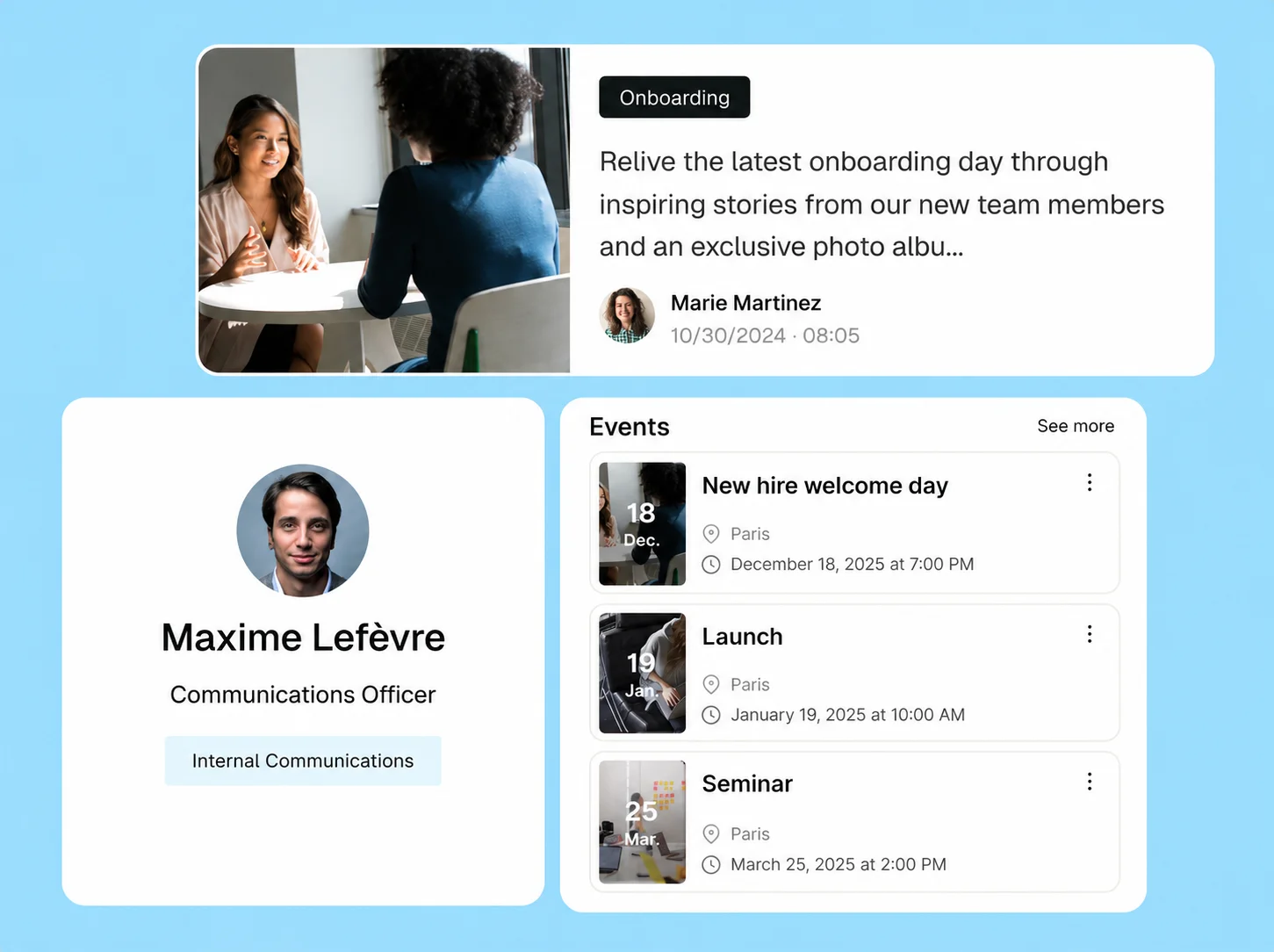
Create your SharePoint intranet step by step
Here's the concrete method, with no code. This is the heart of the project.
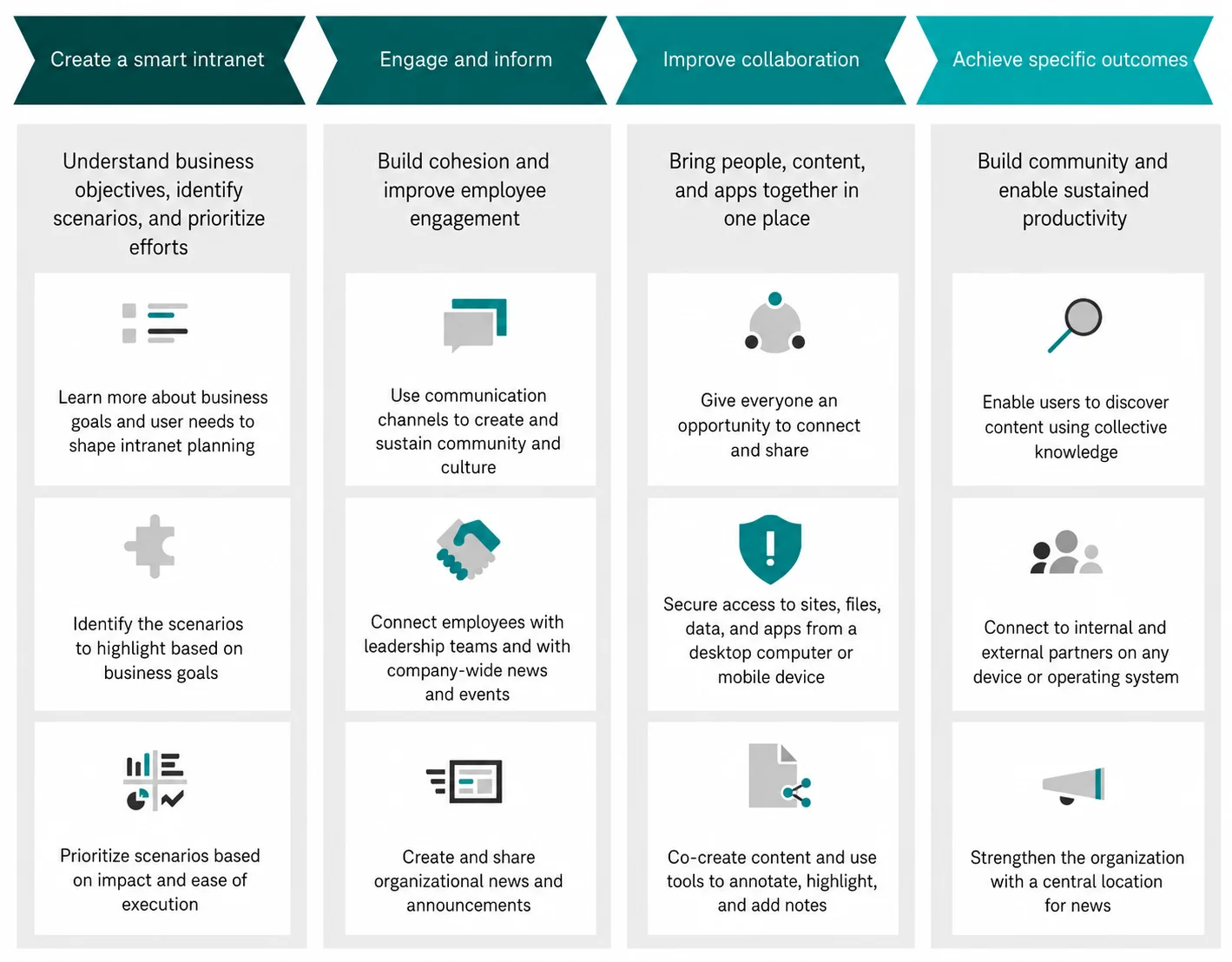
1. Create a communication site
From the Microsoft 365 app launcher, open SharePoint, click "Create site" and choose the Communication type. It's the right format for an intranet home page: few contributors, many readers.
2. Design a simple information architecture
Before thinking about design, plan the navigation from the employee's point of view: find the essentials fast, move around effortlessly. A clear structure (HR, departments, news, tools) makes or breaks adoption. It's the most strategic step, and the most overlooked. According to McKinsey (“The social economy”, a reference study), the average employee spends 1.8 hours a day searching for information: a clear architecture attacks that waste at the root.
3. Add the essential web parts
Build the home page with the native components: News, Events, Quick Links, Hero, Document Library, Image Gallery, Stream for video. Match each type of content with the right web part.
4. Customize the theme and logo
Apply a theme in your brand colors and upload your logo. This is where native SharePoint shows its design limits, and where an extension takes over.
5. Configure permissions
Rely on the three SharePoint groups: Owners, Members, Visitors. To open the intranet to the whole organization in read mode, use the "Everyone except external users" group. Clean permissions from the start save a lot of trouble later.
6. Turn the site into a hub
Register your site as a hub in the SharePoint admin center. The hub links your future sites (HR, marketing, departments) under shared navigation and branding. It's the backbone of your intranet.
7. Enable Viva Connections, train and launch
Embed the intranet home page directly in Teams via Viva Connections: your employees find it where they already work. Before launch, train contributors and invest in launch communication. An intranet nobody knows how to feed is useless.
A basic SharePoint intranet deploys in a few days; a polished, governed one takes more like 4 to 12 weeks, depending on architecture and content to migrate.
The simplest path: SharePoint + a native extension
Three paths exist to build your SharePoint intranet. For a Microsoft 365 organization that wants to move fast without technical debt, the native extension is the best compromise.
Custom development offers total freedom, but at the cost of a heavy budget and permanent technical debt. Native SharePoint is free but plateaus fast on design and engagement. In between, an extension like Jint SharePoint installs a ready-to-use experience layer on your SharePoint: the polish of a finished product, without leaving your tenant. For the budget details, see the cost of an intranet.
How much does a SharePoint intranet cost?
For an organization already on Microsoft 365, the SharePoint foundation is included in your licenses (Business, E3 or E5 plans): no extra intranet license, no dedicated infrastructure to pay for. The real budget sits in three places: configuration and governance time, launch support, and an optional experience layer (a SaaS extension billed per user). Custom development, by contrast, runs into tens of thousands of euros, maintenance included, and ages badly. For a line-by-line breakdown, see our guide to the cost of an intranet or Jint pricing.
Mistakes to avoid when creating a SharePoint intranet
- Starting with design before the information architecture.
- Letting every department create its own sites with no governance.
- Betting everything on native SharePoint, then hitting its limits.
- Forgetting the mobile experience and frontline teams.
- Neglecting rights and permissions from the start.
- Over-developing custom code and piling up technical debt.
- Launching without training contributors or animating the intranet.
The key features of a SharePoint intranet
To streamline internal communication, foster collaboration, boost productivity, improve knowledge management and deliver a great user experience, a SharePoint intranet should cover four families of features.
Design features
To be useful, an intranet must be engaging and intuitive. Navigation between sections should be smooth, and the workspace should reflect your organization's identity. Features that go beyond SharePoint's default design, such as highlighted call-to-action buttons, title separators and visual blocks, are therefore essential: they turn a functional SharePoint page into an experience people actually want to open.
Communication features
A corporate intranet is a tool for internal communication. The features to aim for: a contribution help center so everyone creates consistent content from templates; a social wall to relay and react to your social posts; a news gallery to push the right information to the right audience; an events component to promote seminars and meetings; a "my subscriptions" feature so each person follows the topics they care about; and a newsletter feature that reuses intranet content, powered by AI and targeted by Entra ID groups.
AI features
Artificial intelligence moves the intranet into a new era: writing assistance to draft, translate, summarize or reformat a text; contextual search that answers from company data; action management to prepare and follow up on meetings; reminders for tasks and deadlines; and personalized AI assistants that answer HR or IT questions from your internal content.
Collaboration features
So the intranet is a real work tool, not a showcase: document libraries and records management to organize knowledge; a directory to find a colleague or an expert in seconds; Teams integration inside SharePoint; real-time co-editing of Word, PowerPoint and Excel; integration of project tools (Planner, To Do, Project); and a personal dashboard that gathers the tools, resources and contacts each employee needs.
SharePoint intranet examples

Five formats companies deploy, what makes them work, and who each is for:
- Corporate communication portal. Headline news, a leadership message, events and key figures. Why it works: it gives the whole organization a clear daily starting point. Best for: informing and uniting at scale, the most common use case.
- HR and onboarding intranet. Onboarding journeys, leave requests, HR documents and FAQ. Why it works: it turns repetitive questions into self-service. Best for: lightening the HR team and nailing new-hire onboarding.
- Business portal (finance, legal, IT). Procedures, templates, knowledge base, forms. Why it works: critical knowledge stops living in inboxes. Best for: departments with a heavy documentation load.
- Frontline intranet. Mobile access, essential information, targeted notifications. Why it works: it follows the employee wherever they work. Best for: the factory, the store, the site, the hospital.
- Social, collaborative intranet. Social wall, communities, peer recognition. Why it works: it turns a top-down portal into a living network. Best for: boosting engagement and culture.
These formats deliver measurable results. In our 4 detailed SharePoint intranet examples, a multi-site communication hub reaches 76% monthly active users in 90 days, a self-service HR portal cuts routine requests by 44%, and a governed knowledge base brings the time to answer an internal question from 18 minutes down to 2.
Want broader inspiration? Browse our corporate intranet examples.
SharePoint vs other Microsoft tools and alternatives
SharePoint is often confused with Google Drive, Teams, OneDrive or WordPress. They don't play the same role.
SharePoint vs Google Drive
SharePoint vs Teams
SharePoint vs OneDrive
SharePoint vs WordPress
What is a SharePoint intranet?
An intranet is an organization's private internal network, reserved for employees to communicate, share documents and access business tools. SharePoint is the Microsoft platform used to build it: the tool on one side, the use on the other. Included in Microsoft 365, it lets you create communication sites (broadcast) and team sites (collaboration). In practice, a SharePoint intranet works as a network of sites connected to a hub: content lives in SharePoint, access is controlled through Microsoft Entra ID, and employees reach it from their browser, Teams or the mobile app. For a full definition, see what SharePoint is.
Advantages and limits of SharePoint
SharePoint is relevant because it's already included in Microsoft 365, secure in your tenant, integrated with Teams and Outlook, and flexible enough to build an intranet without starting from scratch. We detail it all in why choose SharePoint for your intranet. Its main advantages:
- Microsoft 365 integration (Word, Excel, Teams, Outlook, Planner), which lowers the learning curve and speeds adoption.
- Access from anywhere, on computer, tablet or smartphone via the mobile app.
- Flexibility: 50+ languages, themes and web parts to fit your needs.
- Microsoft-grade security: hosting on Microsoft servers, automatic updates, encryption, multi-factor authentication.
Its native limits are real, though: a dated design, basic internal communication (no native newsletter or advanced targeting), weak editorial governance and laborious multilingual. Filling those gaps with in-house code piles up technical debt: a custom intranet is never "finished." The right answer isn't to endure the native experience, but to enrich it.
Choose the appropriate type of SharePoint intranet solution
This step also involves choosing an intranet CMS that is suitable for your technical environment and internal resources.
Once you have written the specifications for your SharePoint intranet, you must choose an intranet solution that meets them:
- If you have the necessary financial and technical resources and need a 100% customized intranet, you can opt for custom development.
- For accelerated deployment, simplified management and controlled cost, opt for an integrated platform that you can easily customize, such as the Jint SharePoint extension.
Free resource
SharePoint intranet specification template
Download our ready-to-use template to frame your intranet project: objectives, features, governance, planning and success criteria.
- Clear structure, easy to customize
- Built for SharePoint intranet projects
- Ideal to scope a project or launch an RFP
Free • No commitment • Ready to use
Write the project scoping document for the intranet project
The third step in successfully completing a SharePoint intranet project is to write a project charter. This document specifies:
- The context, objectives and scope of the project;
- The different stakeholders in the project, their roles and responsibilities;
- The project stages, their chronology, deliverables, controls and success indicators;
- The means of communication between members of the project team
To learn more, discover our SharePoint communication site examples
Communicate, support, and train
If you have entrusted the design, development, customization, deployment, and configuration of your intranet solution to SharePoint specialists (SharePoint consultant, SharePoint developer, etc.), all that remains is to get your employees to adopt the tool. To do this, you can, in particular:
- Communicate about the launch of your SharePoint intranet by highlighting it through various communication actions (newsletters, conference, on-site display, etc.);
- Organize training sessions for users and administrators to introduce them to the tool, how it works, security rules, etc.;
- Provide resources such as guides and video tutorials to employees to help them get to grips with their new intranet in a fun way;
- Set up a peer mentoring program with user-ambassadors tasked with supporting their colleagues in adopting the tool.
Your custom SharePoint intranet with Jint
Rather than replacing SharePoint with a third-party platform that creates yet another silo, the most effective approach is to enhance it with a native extension: Jint SharePoint. This native Microsoft 365 add-in, built by Jint (formerly Mozzaik365), adds over 60 ready-to-use features without your data ever leaving the tenant: branded design, targeted internal communication, social wall, unified search, directory and organizational chart, mobile app for field use, and generative AI with Jint AI.
Eight years of Microsoft 365 expertise, official Microsoft partner status, 300+ client organizations and over 1,000,000 active users: the extension is proven at scale. Browse our customer stories to see what it changes day to day.

Next step
See Jint SharePoint in action
Your SharePoint has everything it needs to become an intranet your teams love. In 30 minutes, our team shows you how to transform it, with no development.
Get a demoFree • No commitment • 30 minutes
One point for 2026: a well-structured intranet is the foundation for your AI agents. Copilot is only as good as the information it can access; well organized, your SharePoint intranet becomes the foundation on which AI answers correctly. The result: an enterprise-grade intranet experience deployed in weeks, on the SharePoint you already have. To position Jint against standalone platforms, see our intranet platforms comparison.
.webp)


